
Tip: You can use filters for better results
-
Latest News
-
Getting Started
-
Work Place
-
-
-
-
- About Buttons
- Action Buttons
- Schedule Tickets
- Ticket Info and COMS Buttons
- Add Parts
- Assign Partners
- Remove Tickets from the Ticket Clipboard
- Inline Skill Editing
- Create Intervention Info
- Create Intervention Reports
- Cancel Tickets
- Cancel Appointments
- Clone Tickets
- Edit Ticket Details
- Edit Privat Notes
- Report Tickets
- Close Tickets
-
-
Admin Panel
-
FMA 2 App
-
Customer Portal
About the Workflow Designer
- The Workflow Designer contains all currently configured workflow steps for a workflow.
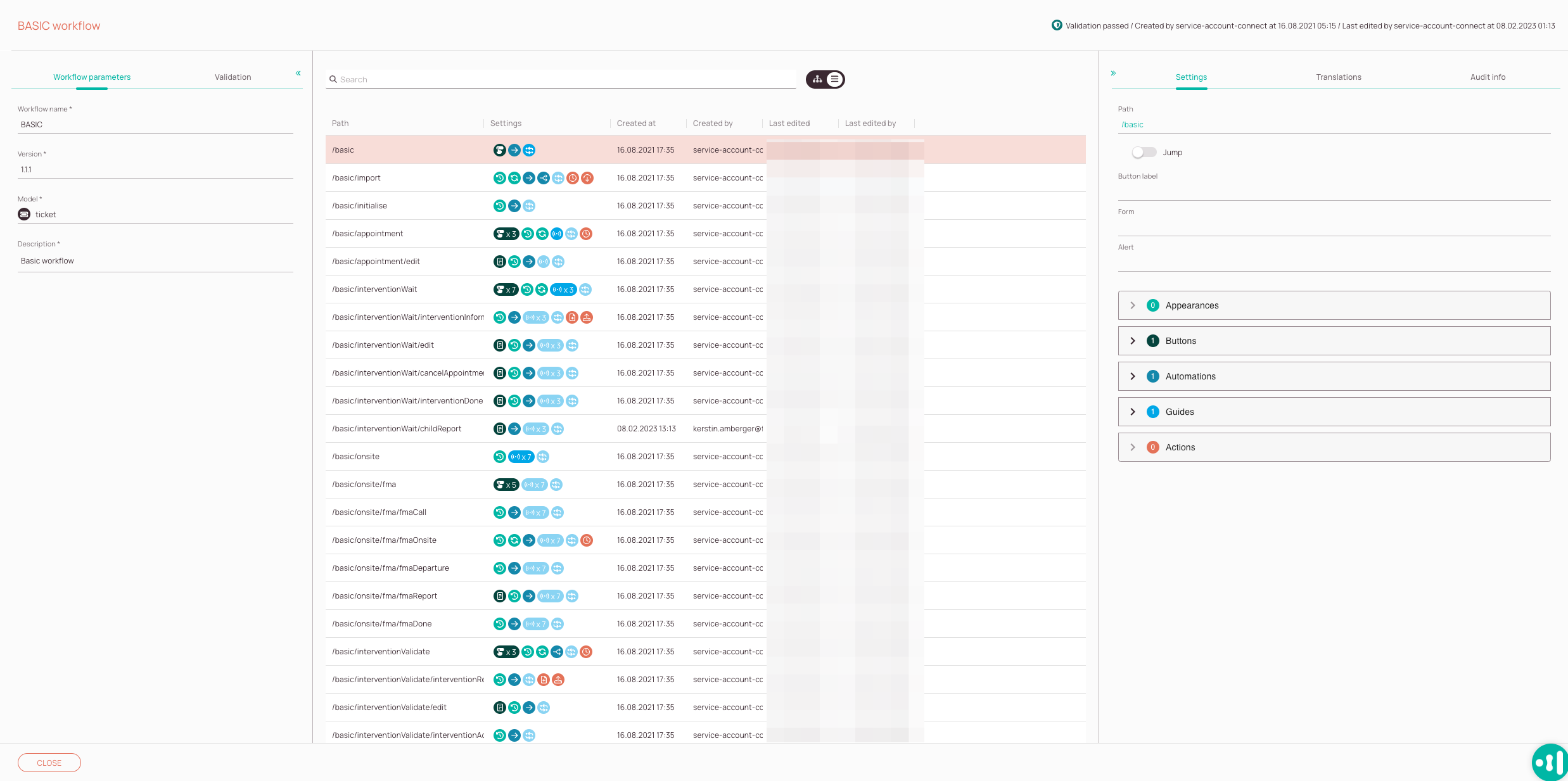
- The Workflow Designer is clustered in a three-pane layout.
-
Workflow Parameters tab: The parameters tab allows you to set basic options, such as the name, displays the version, the object type and a detail description.
-
Validations tab: The validations tab allows you to identify issues with your workflow and helps you to troubleshoot. Use the Validations tab to catch common issues like:
- Missing objects or fields
- Invalid conditions
- Unassigned buttons
Always validate before publishing to avoid runtime errors.
-
Workflow node search: Gives you to the option to search for a specific node by entering a search keyword.
-
View changer: Gives you the option to change between a workflow hierarchy view and list view. The Workflow path hierarchy view gives you a better understanding of how a selected workflow can move around by displaying children, siblings etc.
-
Workflow node view: You can check all the paths of a selected workflow, configured settings for each node, node creation dates, node creators, node last edit date and times, and which user last edited a certain workflow node in this section.
-
Validations Notifications: This notification gives you a hint of whether your selected workflow is performing flawlessly.
-
Settings tab: You can check Appearances, Buttons, Automations, Guides, and Actions of a particular workflow node.
-
Translations tab: The translation tab gives you the option to edit workflow path localizations for different languages. What you can do with it for example, is to add translations for the history tab as when a workflow changes in some way it is always displayed inside the History tab.
-
Audit info tab: The audit info tab summarizes by whom a workflow path was created initially and who last edited it.
Workflow Parameters and Validation
On the left side of the Workflows designer, there are the Workflow Parameters tab and the Validations tab. In the Workflow Parameters tab, you can view the various workflow parameters of the currently selected workflow. In the Validations tab, you can check the functionality of your currently selected workflow.
Workflow Parameters tab
In the Workflow Parameters tab, you can view the individual properties of the currently selected workflow. Below, we will go through each of the fields and learn more about their individual meanings.
The name of the currently selected workflow.

The version of the currently selected workflow.

The object used in this workflow.

The trigger used in this workflow.

List of projects to which this workflow is assigned.

The short/long description for this workflow.

- You have the option to clone workflows
- Cloned workflows will be inserted into the workflow table as a copy.
Validations tab
In the Validations tab, you can fix your workflow errors/warnings by, for example, adding more objects, following the object path to fix your error/warning, and you can refresh the view anytime to check if previously detected errors have been fixed.
0 out of 5 stars
| 5 Stars | 0% | |
| 4 Stars | 0% | |
| 3 Stars | 0% | |
| 2 Stars | 0% | |
| 1 Stars | 0% |