
Tip: You can use filters for better results
-
Latest News
-
Getting Started
-
Work Place
-
-
-
-
- About Buttons
- Action Buttons
- Schedule Tickets
- Ticket Info and COMS Buttons
- Add Parts
- Assign Partners
- Remove Tickets from the Ticket Clipboard
- Inline Skill Editing
- Create Intervention Info
- Create Intervention Reports
- Cancel Tickets
- Cancel Appointments
- Clone Tickets
- Edit Ticket Details
- Edit Privat Notes
- Report Tickets
- Close Tickets
-
-
Admin Panel
-
FMA 2 App
-
Customer Portal
About Workflow Versioning
The Workflow designer allows you to save a temporary copy of a workflow and publish it when it has been validated and successfully tested for execution by the Workflow engine.
The ability to work on a temporary version is intended for use during the design and testing phases.
Versioning allows you to make changes to workflows without immediately publishing them. You can test draft versions while the version currently in use remains unchanged. Version control is also key to compliance and audit readiness, as it provides a permanent and granular view of how your workflows have changed, and when and by whom the changes were made.
Fieldcode supports workflow versioning, allowing you to safely test and update workflows without affecting live operations.
- Draft Version: Editable and not yet active.
- Published Version: Active and visible to users.
- Cloning: Create a new version based on an existing one.
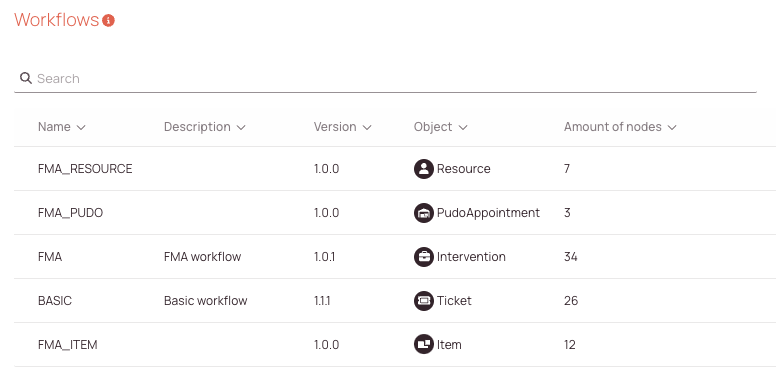
The workflow table displays all default workflow objects inside a table, including all their consecutive versions:
The first thing you see when you open the Workflow menu is all the currently configured workflows for your account.
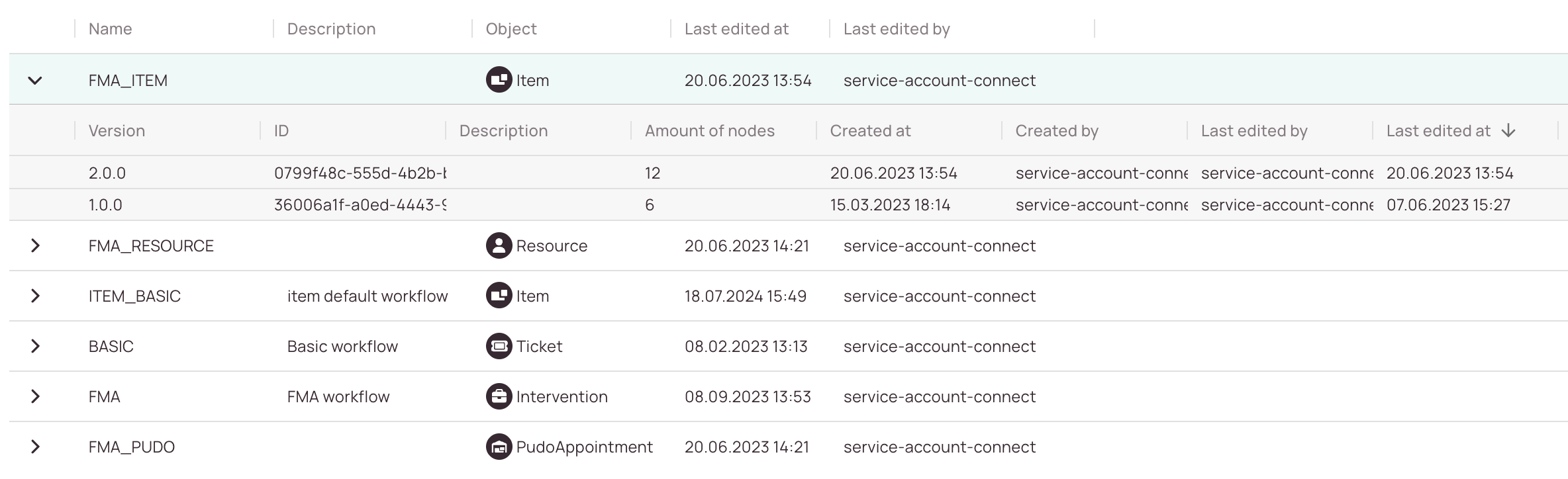
Once you expand on a workflow by clicking the expand arrow button, you will see further version and node details.
Let's take a look at the FMA_Item workflow for example. Version jumps always increment in 1.0.0 steps if you or someone else does edits.
Versioning FAQ
The Admin role with View and Edit permissions for the workflow section is required to use version control.
To find a list of versions, open the Workflows main page and expand the workflow you want to check out.

Versions are always incremented in whole numbers. There are currently no small increments.
Exceptions, where you may discover smaller increments, are the workflows that we provide by default.
Example:
2.0.0 -> 3.0.0
You can publish a new workflow version in the bottom bar of the Workflow designer by clicking the Publish button when editing a workflow. The buttons are only visible when editing a workflow. You may not have edit permissions , if you do not see those buttons while having a workflow opened.

When you publish a new version, all objects created after the version is published will use that version. All objects created before will use the previous version.
Version control entries are not copied over when you clone a workflow.
0 out of 5 stars
| 5 Stars | 0% | |
| 4 Stars | 0% | |
| 3 Stars | 0% | |
| 2 Stars | 0% | |
| 1 Stars | 0% |