
Tip: You can use filters for better results
-
Latest News
-
Getting Started
-
Work Place
-
-
-
-
- About Buttons
- Action Buttons
- Schedule Tickets
- Ticket Info and COMS Buttons
- Add Parts
- Assign Partners
- Remove Tickets from the Ticket Clipboard
- Inline Skill Editing
- Create Intervention Info
- Create Intervention Reports
- Cancel Tickets
- Cancel Appointments
- Clone Tickets
- Edit Ticket Details
- Edit Privat Notes
- Report Tickets
- Close Tickets
-
-
Admin Panel
-
FMA 2 App
-
Customer Portal
Schedule Tickets in the FMA
About ticket scheduling in the FMA
Ticket scheduling is the FMA feature that lets you set the appointment time for tickets assigned to you. Your dispatcher assigns the ticket to you, and you choose the day and time that suit your route. This page covers how to find and schedule these tickets.
If Ticket scheduling is not in your side menu, your company does not use this feature.
Scheduling a ticket
Tickets that are assigned to you but not yet scheduled are listed on the Ticket scheduling page, not in your Appointments list.
How to schedule a ticket
-
Tap Ticket scheduling in the side menu. The page lists the tickets assigned to you that are not yet scheduled.
If more than one account is signed in on this device, select All to see the tickets of every account, or select one account to see only its tickets.
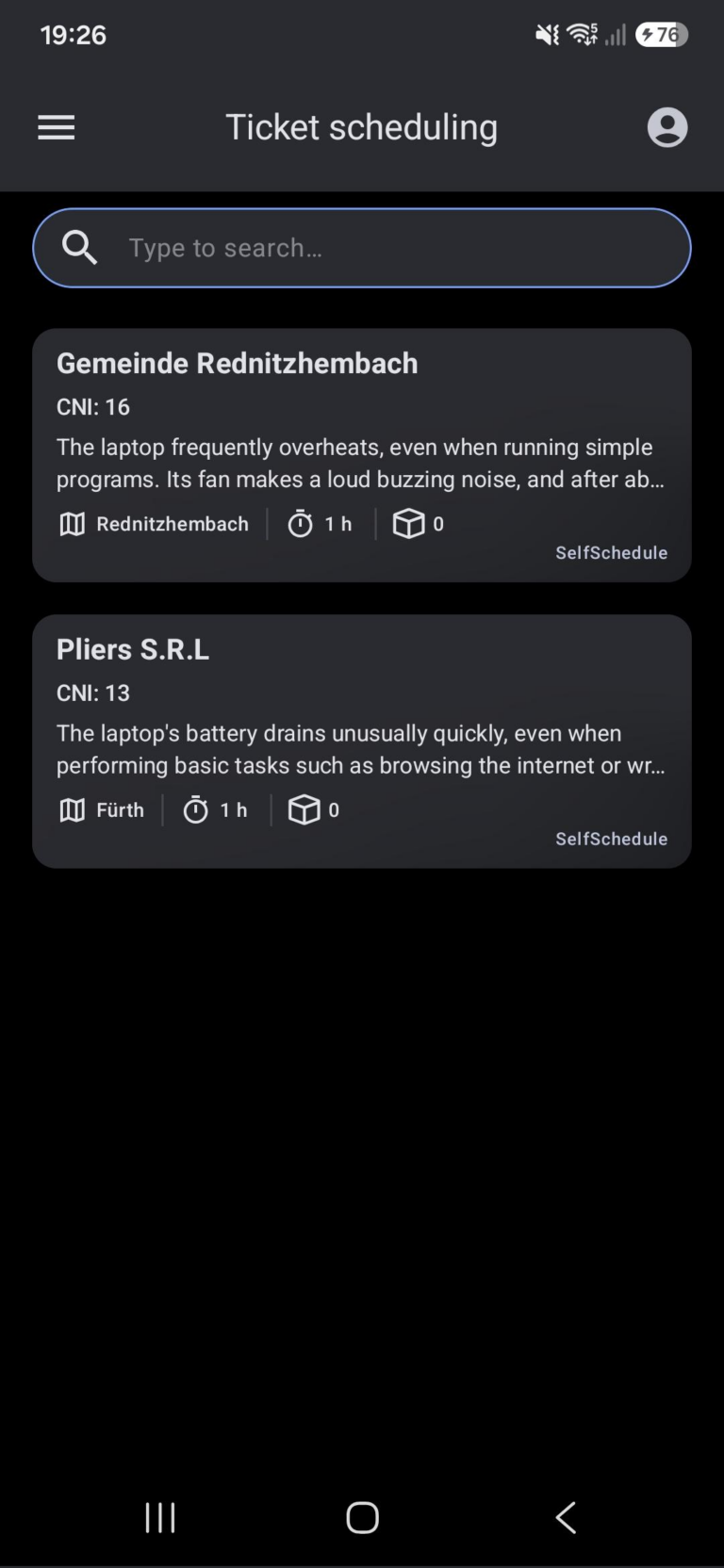
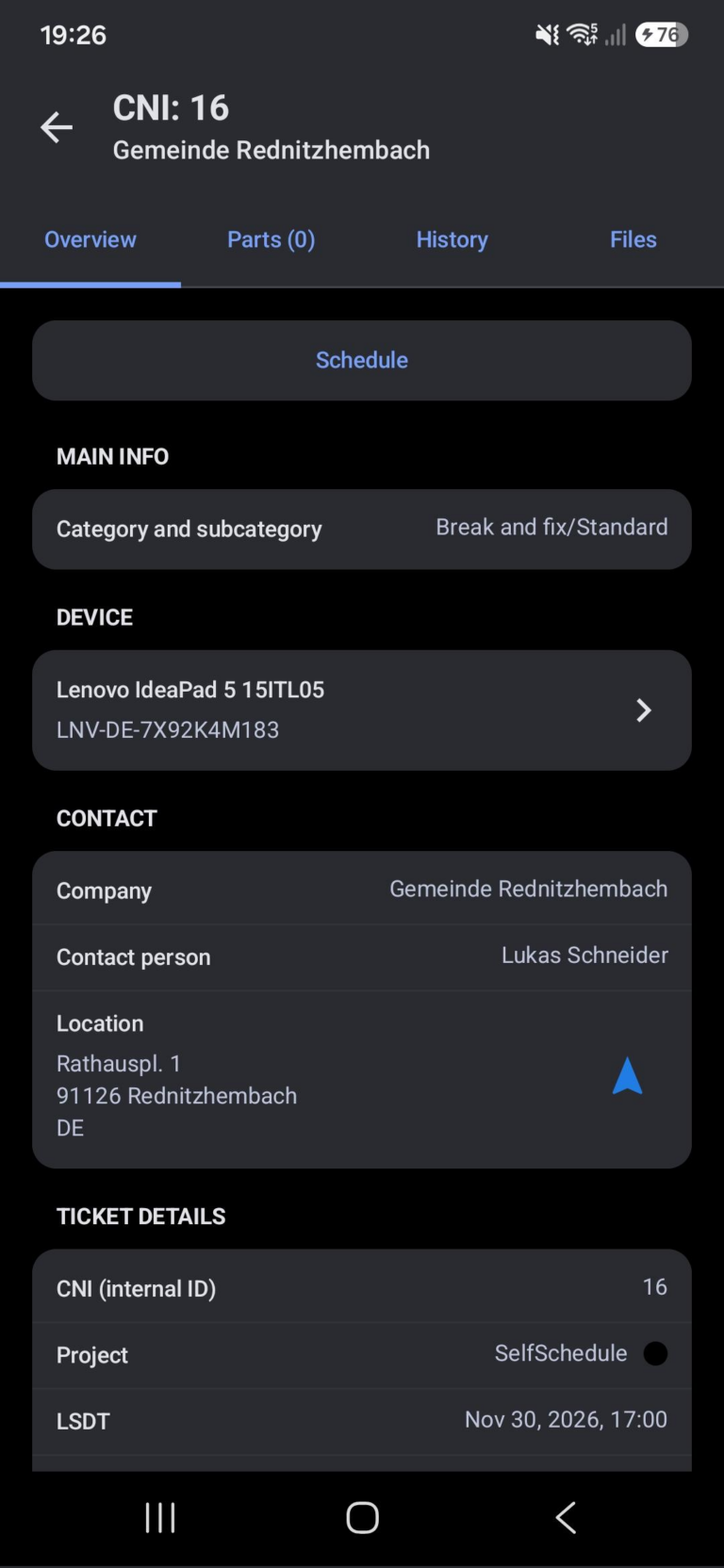
- Tap the ticket you want to schedule. Its details open on the Overview tab.
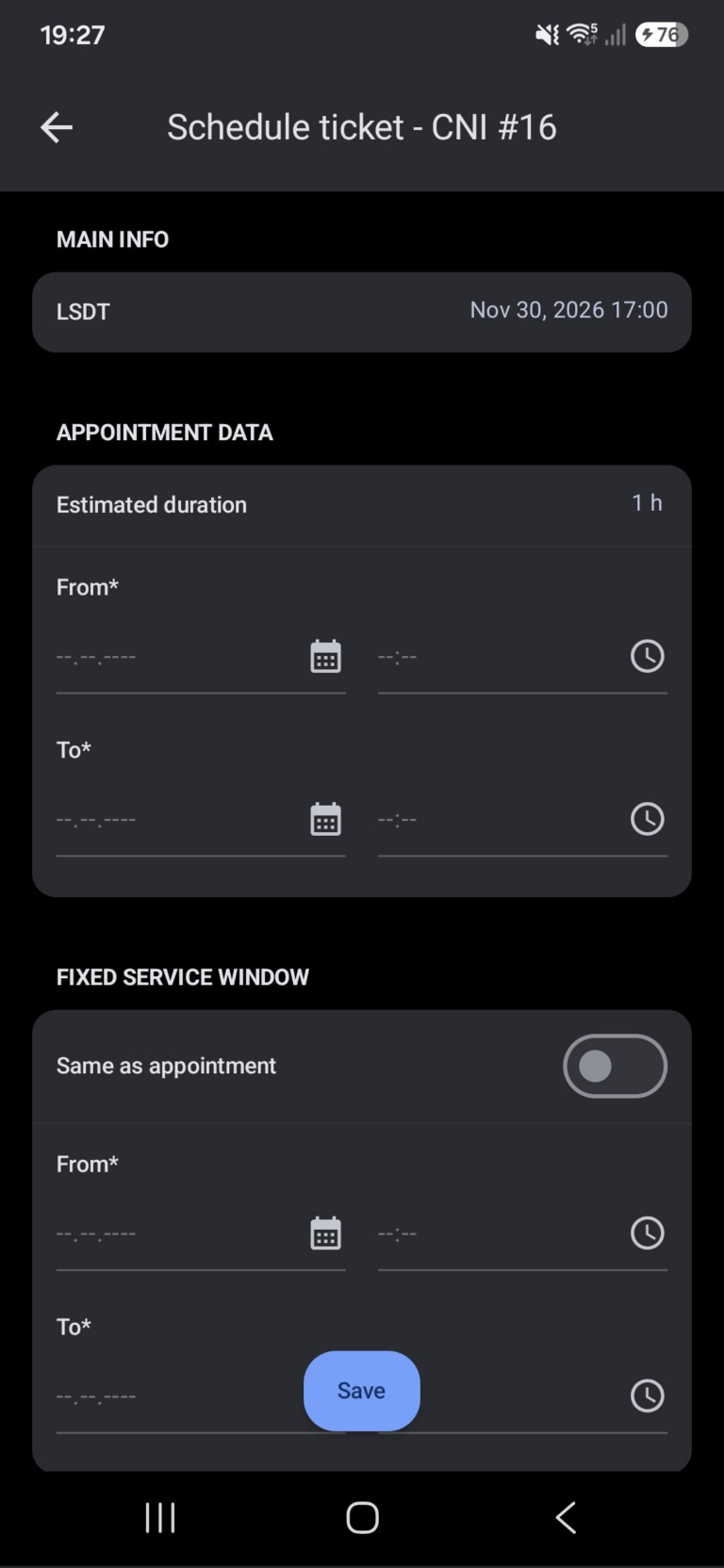
- Tap Schedule at the top of the ticket. The Schedule ticket page opens and shows the Latest Service Delivery Time (LSDT) at the top. The LSDT is the deadline by which the work must be done.
- Under Appointment Data, set the From date and time. The To time fills in automatically from the ticket’s estimated duration.
- (Optional) Change the To date and time if you expect the work to take longer or shorter. This changes only your appointment, not the ticket’s estimated duration.
- Set the Fixed Service Window, or turn on Same as appointment. The fixed service window is the time the customer is available, which helps if the plan needs to change later.
- Tap Save. The “Schedule submitted” pop-up confirms: “The ticket schedule has been successfully submitted. The scheduled ticket will appear in the Appointments list.”
If the ticket is already on the Timeline, the Appointment Data is filled in to match its place on the Timeline. You can keep it or change it.
The ticket moves from the Ticket scheduling page to your Appointments list and is published automatically, so you can start work on it as usual. The appointment also appears on the dispatcher’s Timeline.
FAQ - Ticket Scheduling in the FMA
It has not been scheduled yet. Unscheduled tickets are on the Ticket scheduling page. See Scheduling a ticket.
By Call Number Internal (CNI), the internal ticket number, from highest to lowest. The list cannot be sorted or filtered, and it does not show the ticket score. You can search the list, and VIP tickets are marked.
Not in the list. When you tap Schedule, a proposed time is already filled in. See Scheduling a ticket.
Yes, if the project’s settings allow it. Plan the appointment before the LSDT where possible, so the work is done before the deadline.
No. Ask your dispatcher to add the parts to the ticket.
Another account signed in on the same device may have an appointment in progress. Contact your administrator.
0 out of 5 stars
| 5 Stars | 0% | |
| 4 Stars | 0% | |
| 3 Stars | 0% | |
| 2 Stars | 0% | |
| 1 Stars | 0% |