
Tip: You can use filters for better results
-
Latest News
-
Getting Started
-
Work Place
-
-
-
-
- About Buttons
- Action Buttons
- Ticket Info and COMS Buttons
- Add Parts
- Assign Partners
- Remove Tickets from the Ticket Clipboard
- Inline Skill Editing
- Create Intervention Info
- Create Intervention Reports
- Cancel Tickets
- Cancel Appointments
- Clone Tickets
- Edit Ticket Details
- Edit Privat Notes
- Report Tickets
- Close Tickets
-
-
Admin Panel
-
FMA 2 App
-
Customer Portal
Switch Between the Work Place and Admin Panel
About the Work Place and Admin Panel
Fieldcode has two main areas, and you open both in a web browser. Dispatchers schedule and manage tickets in the Work Place. Administrators set up projects, users, workflows, and other settings in the Admin Panel.
The sidebar of each area has a button that opens the other area in a new browser tab. You can keep both tabs open and move between them in your browser.
Opening the Admin Panel or Work Place
How to open the Admin Panel from the Work Place
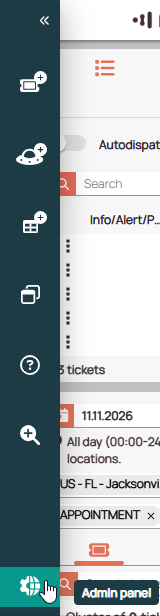
Only users with permission to open the Admin Panel see the gear-and-globe icon in the Work Place sidebar. If the icon is missing and you need the Admin Panel, ask your Fieldcode administrator. Permissions are set in Permissions Settings.
- In the Work Place, click the expand arrow on the left to open the sidebar.
- Click Admin Panel, the icon with a gear and a globe at the bottom of the sidebar.
The Admin Panel opens in a new browser tab. The other sidebar buttons are described in Work Place Sidebar.
How to open the Work Place from the Admin Panel
In the Admin Panel sidebar, click Work Place, the icon with three connected dots at the bottom of the sidebar. The sidebar is always visible, so you do not need to expand it.
The Work Place opens in a new browser tab. The other sidebar menus are described in Admin Panel Sidebar.

0 out of 5 stars
| 5 Stars | 0% | |
| 4 Stars | 0% | |
| 3 Stars | 0% | |
| 2 Stars | 0% | |
| 1 Stars | 0% |