
Tip: You can use filters for better results
-
Latest News
-
Getting Started
-
Work Place
-
-
-
-
- About Buttons
- Action Buttons
- Schedule Tickets
- Ticket Info and COMS Buttons
- Add Parts
- Assign Partners
- Remove Tickets from the Ticket Clipboard
- Inline Skill Editing
- Create Intervention Info
- Create Intervention Reports
- Cancel Tickets
- Cancel Appointments
- Clone Tickets
- Edit Ticket Details
- Edit Privat Notes
- Report Tickets
- Close Tickets
-
-
Admin Panel
-
FMA 2 App
-
Customer Portal
About skills
Once skills are created in the Admin Panel, you can add or remove them from a ticket’s Skill requirements in Ticket Details. Do this when a review of the ticket makes it clear that the skill requirements should be adjusted.
Skills can be weighted as low, medium, or high, or marked as absolutely mandatory. They are color-coded, so you can see this at a glance. The system uses the weight of the skill to prioritize tickets. Manually changing a ticket’s skills updates the ticket automatically.
If a mandatory skill is added to a ticket, the system will not assign that ticket to an engineer who doesn’t have it.
Skill colors
The different color coding makes it easy to see the skill weights or whether skills are mandatory for the selected ticket. Skill weight is assigned to the skill at skill creation and can be edited in the Skills section of the Admin Panel.
| Skill color | Description |
|---|---|
 | This skill has a low importance weight. |
 | This skill has a medium importance weight. |
 | This skill has a high importance weight. |
 | This skill is absolutely necessary for the ticket to be solved successfully. |
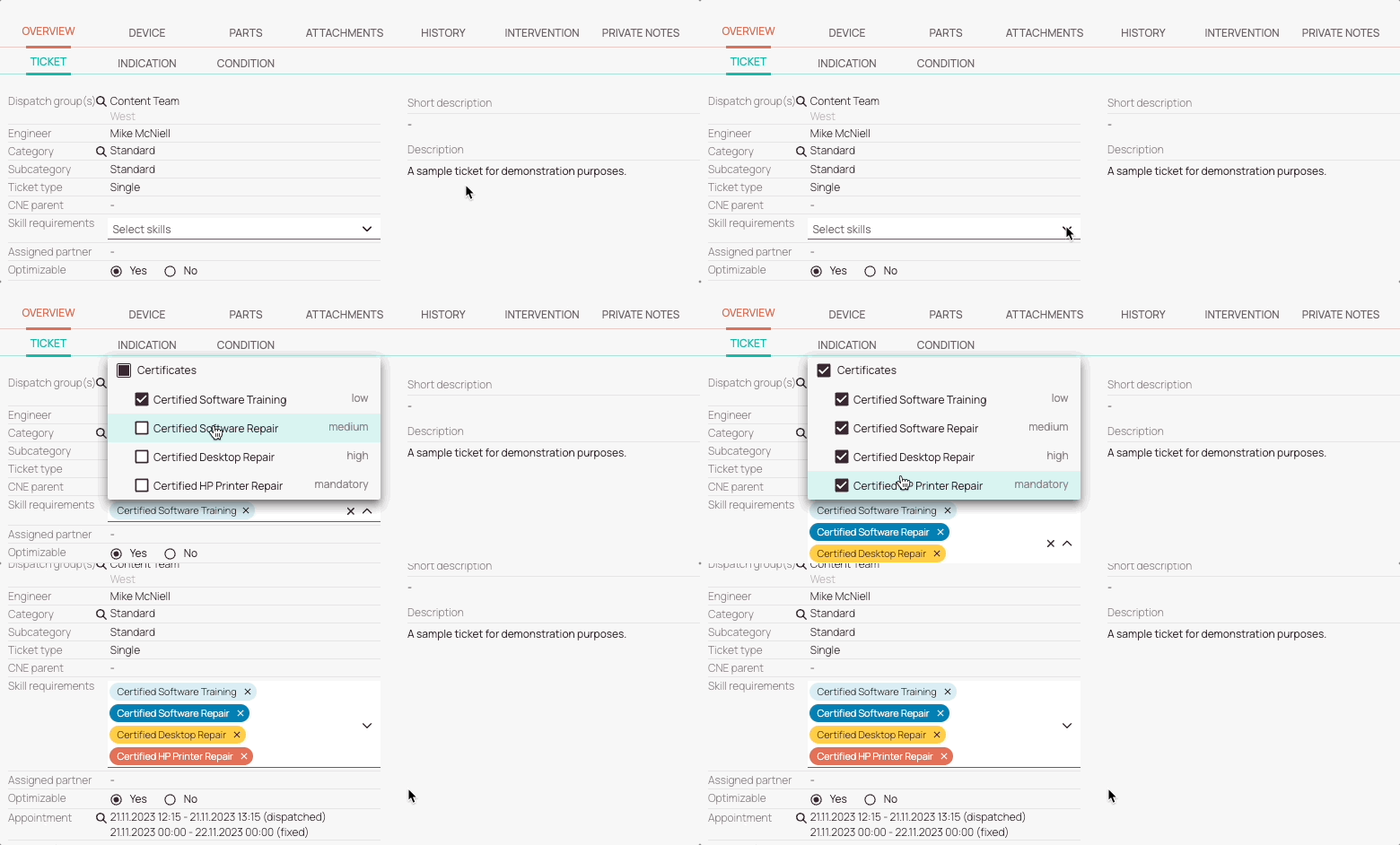
How to add skills
- Select a ticket from the Ticket Pool for which you want to readjust skills.
- Inside the Ticket Details move over to the Overview tab and then to the Ticket sub-tab.
- Click inside the Skill requirement field.
- Select the skill or skills that you want to add from the dropdown and check them appropriately.
- Click somewhere outside the Skill requirement field.
- The skill or skills should appear in the Skill requirement field and the ticket should update automatically (visible with a spinning wheel inside the Ticket Pool).
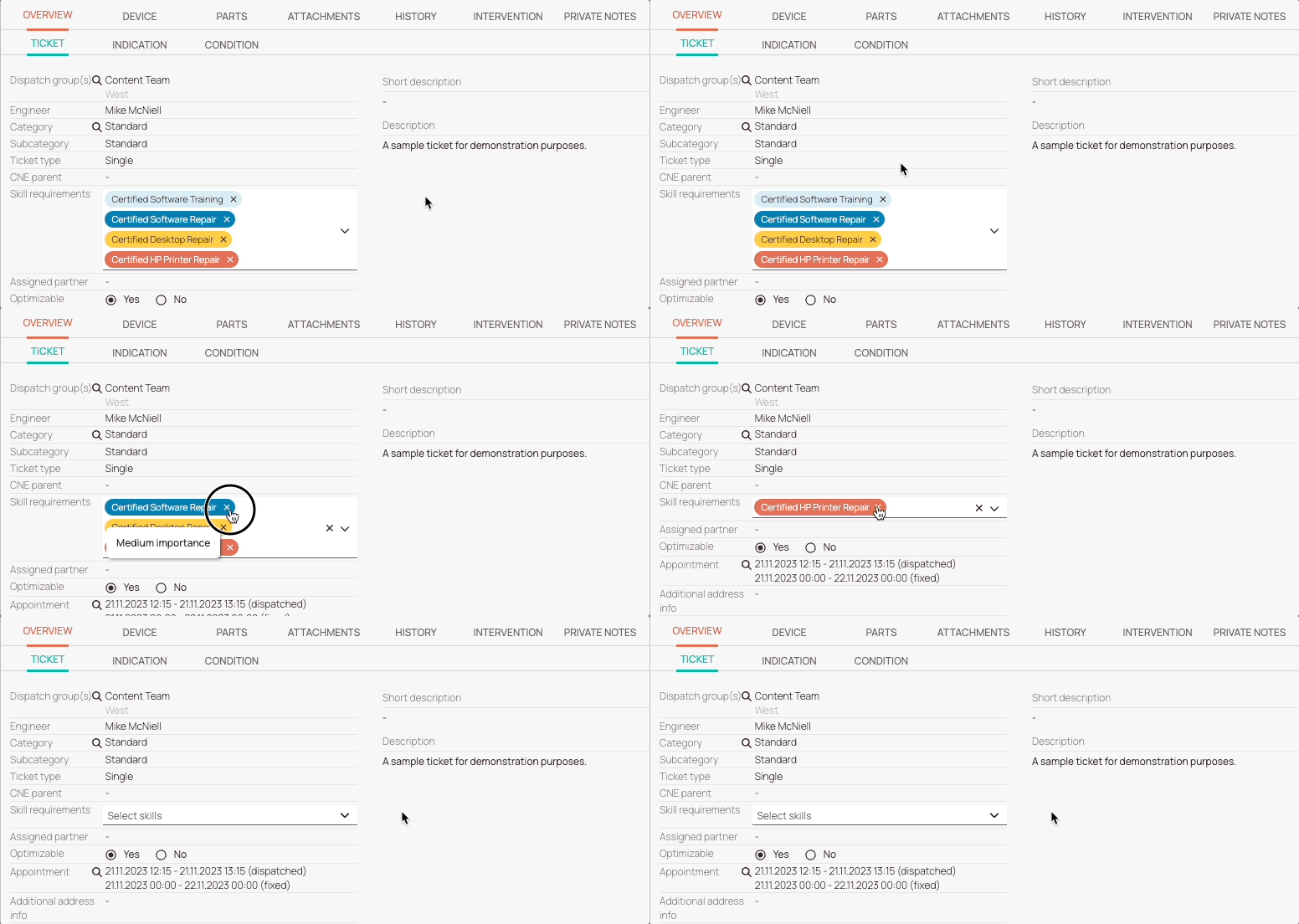
How to remove skills
- Select a ticket from the Ticket Pool for which you want to readjust skills.
- Inside the Ticket Details move over to the Overview tab and then to the Ticket sub-tab.
- Click on the x of a skill or skills inside the Skill requirement field to remove them.
Alternate way of removing skills: Click on a skill to reveal the dropdown list and uncheck the skills that should be removed. - Click somewhere outside the Skill requirement field.
- The skill or skills should vanish from the Skill requirement field and the ticket should update automatically (visible with a spinning wheel inside the Ticket Pool).
0 out of 5 stars
| 5 Stars | 0% | |
| 4 Stars | 0% | |
| 3 Stars | 0% | |
| 2 Stars | 0% | |
| 1 Stars | 0% |