
Fieldcode Manual
Tip: You can use filters for better results
-
Latest News
-
Getting Started
-
Work Place
-
-
-
-
- About Buttons
- Action Buttons
- Ticket Info and COMS Buttons
- Add Parts
- Assign Partners
- Remove Tickets from the Ticket Clipboard
- Inline Skill Editing
- Create Intervention Info
- Create Intervention Reports
- Cancel Tickets
- Cancel Appointments
- Clone Tickets
- Edit Ticket Details
- Edit Privat Notes
- Report Tickets
- Close Tickets
-
-
Admin Panel
-
FMA 2 App
-
Customer Portal
Last updated:
Display Tickets on the Map
Copy the URL link to this section to share
About showing tickets on the Map
Copy the URL link to this section to share
The Map shows tickets and engineers on a map. When you click a ticket in the Ticket Pool or on the Timeline, the ticket opens in Ticket Details and the Map moves to it, so you can see where it is and which tickets are nearby.
Show on Map, in the ticket’s context menu, moves the Map to the ticket without opening it. Use it when:
- you have several tickets open in Ticket Details, because switching between their tabs does not move the Map
- you want to see a ticket on the Map without opening it in Ticket Details
Both methods work only when your current view includes the Map. If it does not, nothing happens. To switch to a view that includes the Map, see Change Views.
Showing a ticket on the Map
Copy the URL link to this section to share
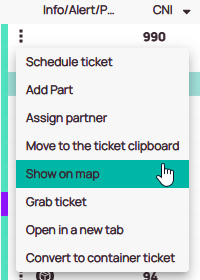
How to show a ticket from the Ticket Pool
- In the Ticket Pool, right-click the ticket.
- Select Show on Map.
The Map moves to the ticket.
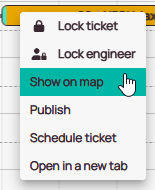
How to show a ticket from the Timeline
- On the Timeline, right-click the ticket.
- Select Show on Map.
The Map moves to the ticket.
Was this topic helpful?
0 out of 5 stars
| 5 Stars | 0% | |
| 4 Stars | 0% | |
| 3 Stars | 0% | |
| 2 Stars | 0% | |
| 1 Stars | 0% |
5
Navigation