
Tip: You can use filters for better results
-
Latest News
-
Getting Started
-
Work Place
-
-
-
-
- About Buttons
- Action Buttons
- Ticket Info and COMS Buttons
- Add Parts
- Assign Partners
- Remove Tickets from the Ticket Clipboard
- Inline Skill Editing
- Create Intervention Info
- Create Intervention Reports
- Cancel Tickets
- Cancel Appointments
- Clone Tickets
- Edit Ticket Details
- Edit Privat Notes
- Report Tickets
- Close Tickets
-
-
Admin Panel
-
FMA 2 App
-
Customer Portal
FMA Settings
About FMA settings
FMA settings control how the FMA works for every engineer in your account. They decide whether engineers can work on several appointments at once, which appointments reach the app, and which features engineers can use.
With FMA settings, you can:
- let engineers work on several appointments at the same time
- send pick-up and drop-off (PUDO) appointments to the app
- let engineers schedule their own tickets
- show the My Day page for logging work times
- check that the tracking codes engineers type for parts are unique
Each setting is described in Available settings. To open the FMA settings, go to Dispatch → FMA in the Admin Panel.
Changing FMA settings
How to turn a setting on or off
- In the Admin Panel, go to Dispatch → FMA.
- Turn the switch of the setting on or off.
- Click Save in the lower-left corner of the page.
The change reaches each engineer’s FMA the next time the app synchronizes, not immediately.
Available settings
The FMA Settings page holds all switches that change how the app behaves. The switches apply to all projects in your account.
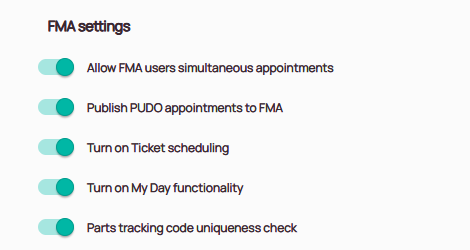
Allow FMA users simultaneous appointments – Lets engineers work on several appointments at the same time. When this is off, an engineer who starts driving to or working on one appointment must finish it first. Until then, the other appointments show Blocked instead of Drive.
Publish PUDO appointments to FMA – Sends published PUDO appointments to the engineer’s FMA. When this is off, newly published PUDO appointments do not appear in the app. PUDO appointments in the app are described in PUDOs and Parts Usage.
Turn on Ticket scheduling – Lets engineers schedule their own tickets in the FMA. The ticket workflow must also allow it. See Setting up ticket scheduling.
Turn on My Day functionality – Adds the My Day page to the FMA. Engineers open it from the menu in the upper-right corner to log the start of work, breaks, and the end of work. When this is off, My Day is hidden in the app. See Log Work Times.
Parts tracking code uniqueness check – Checks that each tracking code an engineer types in a part or shipping form has not been used before. When this is on, more settings appear. See Parts tracking code uniqueness check.
Setting up ticket scheduling
Ticket scheduling lets engineers choose the date and time of their own appointments in the FMA. Turning on Turn on Ticket scheduling is not enough on its own. The ticket workflow of the project must also allow engineers to schedule the ticket.
Workflows decide which buttons and actions are available at each step of a ticket, as described in Workflows. The buttons and actions of a workflow step are set up in its node settings, as described in Node Settings. If you need help setting up a workflow for ticket scheduling, contact Fieldcode Support.
Once the workflow is set up, dispatchers assign the ticket to an engineer without a date, as described in Schedule Tickets with the Scheduling Assistant. The engineer then schedules the ticket as described in Schedule Tickets in the FMA.
Parts tracking code uniqueness check
The parts tracking code uniqueness check stops engineers from reporting the same tracking code twice. The FMA compares each code with the last 200 codes reported on the device for that user account. The app loads these codes when the engineer logs in.
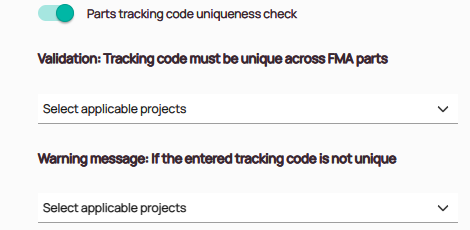
When the switch is on, two more settings appear. For each, select the projects it applies to in Select applicable projects:
Validation: Tracking code must be unique across FMA parts – The projects in which the engineer cannot save a tracking code that is not unique.
Warning message: If the entered tracking code is not unique – The projects in which the engineer sees a warning but can still save the code.
Projects that allow shared tracking codes need no entry.
FAQ - FMA Settings
Because the change reaches the FMA only when the app synchronizes. Ask the engineer to synchronize the app, or wait for the next automatic synchronization.
Because the ticket workflow does not allow it yet. The switch turns the feature on, but the workflow of the ticket’s project must also let engineers schedule the ticket in its current status. See Setting up ticket scheduling.
0 out of 5 stars
| 5 Stars | 0% | |
| 4 Stars | 0% | |
| 3 Stars | 0% | |
| 2 Stars | 0% | |
| 1 Stars | 0% |